Ashes stops responding
If the Ashes window freezes (it no longer reacts to clicks, and Windows may show Not responding in its title bar), no Crash report can tell us what happened: Ashes has not crashed, so nothing was recorded. You can record it yourself by saving a memory dump file with the Windows Task Manager while Ashes is still frozen. This file shows us what Ashes was doing at that moment, which is usually enough to find the cause.
Saving the memory dump file
- Leave the frozen Ashes window open.
- Press Ctrl + Shift + Esc to open the Task Manager. If it opens as a small window with only a list of apps, click More details.
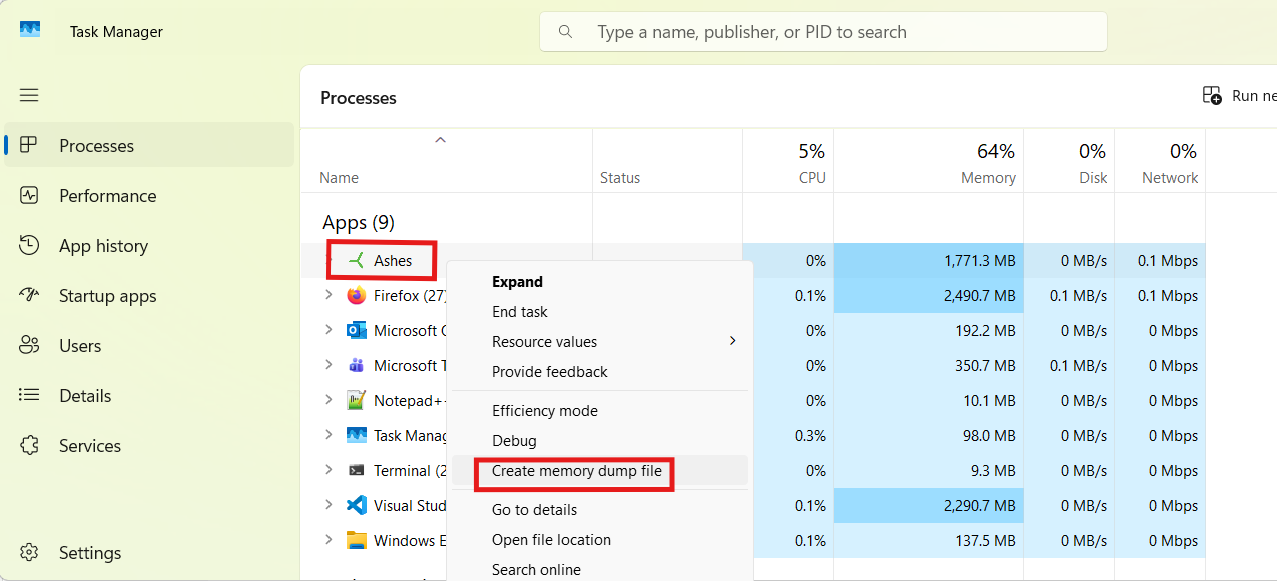
- In the Processes list, find Ashes (it may be marked Not responding).
-
Right-click it and select
Create memory dump file
(named
Create dump file
in older versions of Windows), as shown in the picture below.
-
Wait until Windows says that the file has been created. This can take a minute. The message shows where the file is, normally
%LOCALAPPDATA%\Temp\ashes.DMP. Click Open file location to see it in the File Explorer. - You can now close Ashes: in the Task Manager, right-click it and select End task.
Sending the file to us
The file is large, often several hundred megabytes or more. Right-click it and select Compress to ZIP file (or Send to > Compressed (zipped) folder), which makes it much smaller. It will usually still be too large for an email attachment, so upload the ZIP file to a file-sharing service such as OneDrive, Google Drive or WeTransfer and send the link to support@simis.io. Please tell us what you were doing in Ashes just before it froze, and whether you had left the Ashes window for a while.